A character relationship chart shows the people in a story and how each of them sees the others. This guide builds one in RelationCanvas from a blank canvas: four characters, six labeled arrows, a backup file, and a PNG you can post or keep with your notes. The example cast is Rowan Hale and three of the people around Rowan, taken from the OC template.
RelationCanvas runs in your browser. You do not need an account, and the names, pictures, and relationships you add stay on your device.
Open the relationship chart maker
What goes on a character relationship chart
A chart has three parts: characters, arrows, and labels. A character is a card with a name, and optionally a picture and a private note. An arrow goes from one character to another. The label on the arrow says what the first character feels about the second: Trust, Crush, Rival, or a few words of your own.
Some writers call the same thing a relationship map. Whatever you call it, this guide follows one rule throughout: an arrow describes one direction only. Rowan trusting Ivo says nothing about what Ivo thinks of Rowan. That needs a second arrow.
Before you add anyone, decide what question the chart should answer. "Who does my OC rely on?" needs different arrows from "Which side is each character on?" A short question keeps the chart from turning into a list of everyone you have named.
Step 1: Start a blank chart
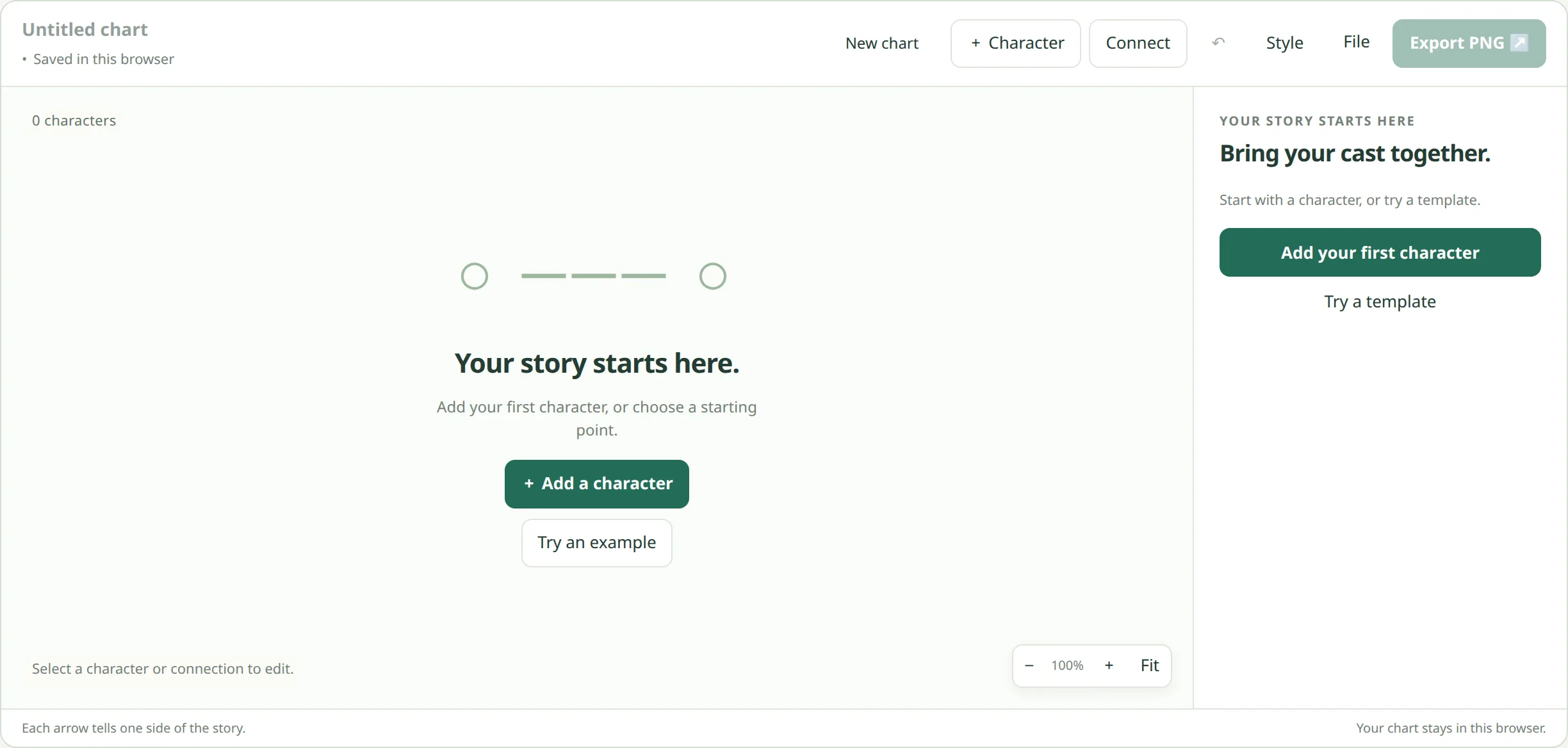
Open the editor on the RelationCanvas home page. On a first visit the canvas is empty and says Your story starts here, with two buttons: + Add a character and Try an example. If you have used RelationCanvas in this browser before, your last chart opens instead.
To start over without losing that chart, open the File menu and choose Download project file first. Then click New chart. The confirmation also offers Download project file, and Undo can bring the old chart back until you refresh or close the page.
Click the title field in the toolbar, which reads Untitled chart, and type a name. The title appears on the exported PNG. For the example, call it Rowan's circle.
Step 2: Add your characters
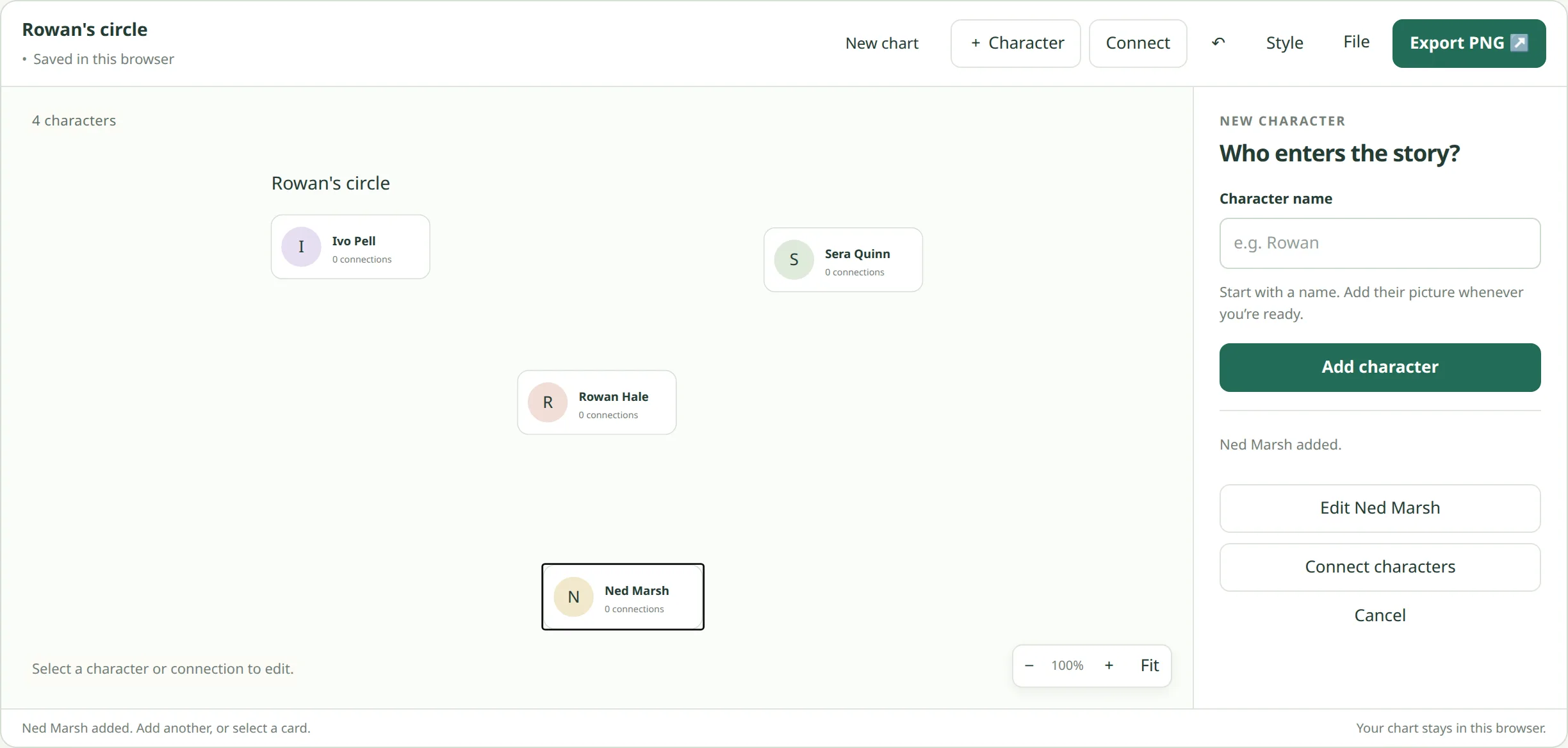
Click + Character in the toolbar. The panel asks Who enters the story? Type a name in Character name and click Add character. The field stays ready for the next name.
For the example, add four people: Rowan Hale, Ivo Pell, Sera Quinn, and Ned Marsh. Rowan is the OC. The other three are there to show three different kinds of answer.
Click a card to edit that character. You can rename them, write a Character note, change the card's accent color, or click Choose picture. Pictures can be PNG, JPEG, WebP, or GIF up to 10 MB. Drag the image to frame it in the circle, then click Use this picture. The picture is resized in your browser and is not uploaded.
Drag the cards to rough positions now. Put the character the chart is about in the middle, and leave room between cards for the labels.
Step 3: Connect two characters
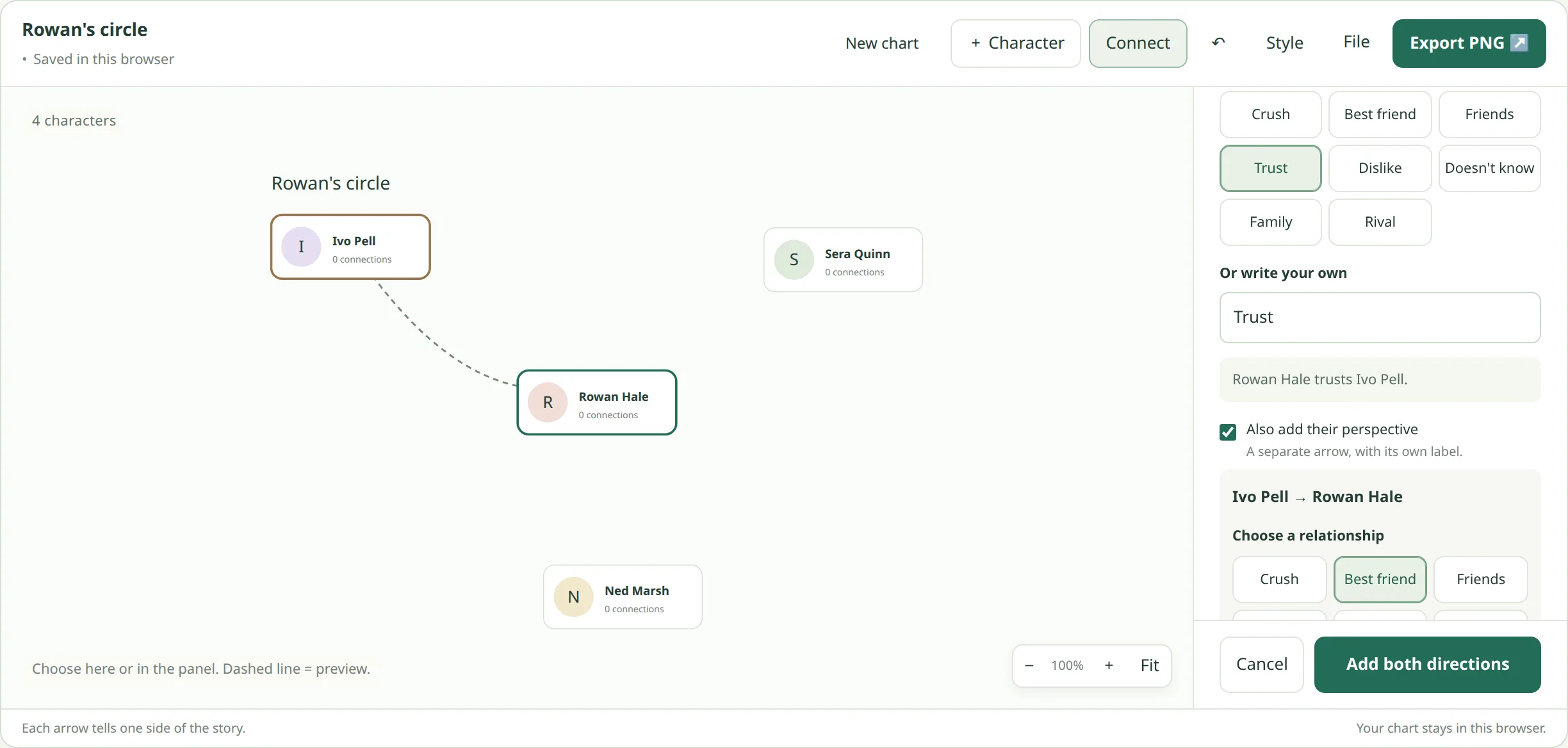
Select Rowan and click Connect to someone, or click Connect in the toolbar. The panel asks Who feels what about whom? Pick the two characters in the From and To menus, or click the two cards on the canvas. From is where the arrow starts. To is where it points.
Choose a relationship from the suggestions: Crush, Best friend, Friends, Trust, Dislike, Doesn't know, Family, or Rival. If none of them fits, type your own under Or write your own. Short labels are easier to read in the exported image, so two or three words is a good limit.
For Rowan to Ivo, choose Trust. Then tick Also add their perspective. A second set of labels appears for Ivo to Rowan. Choose Best friend and click Add both directions. You now have two arrows between the same pair, each with its own label. If you want to leave the reverse for later, leave the box unticked and click Add connection.
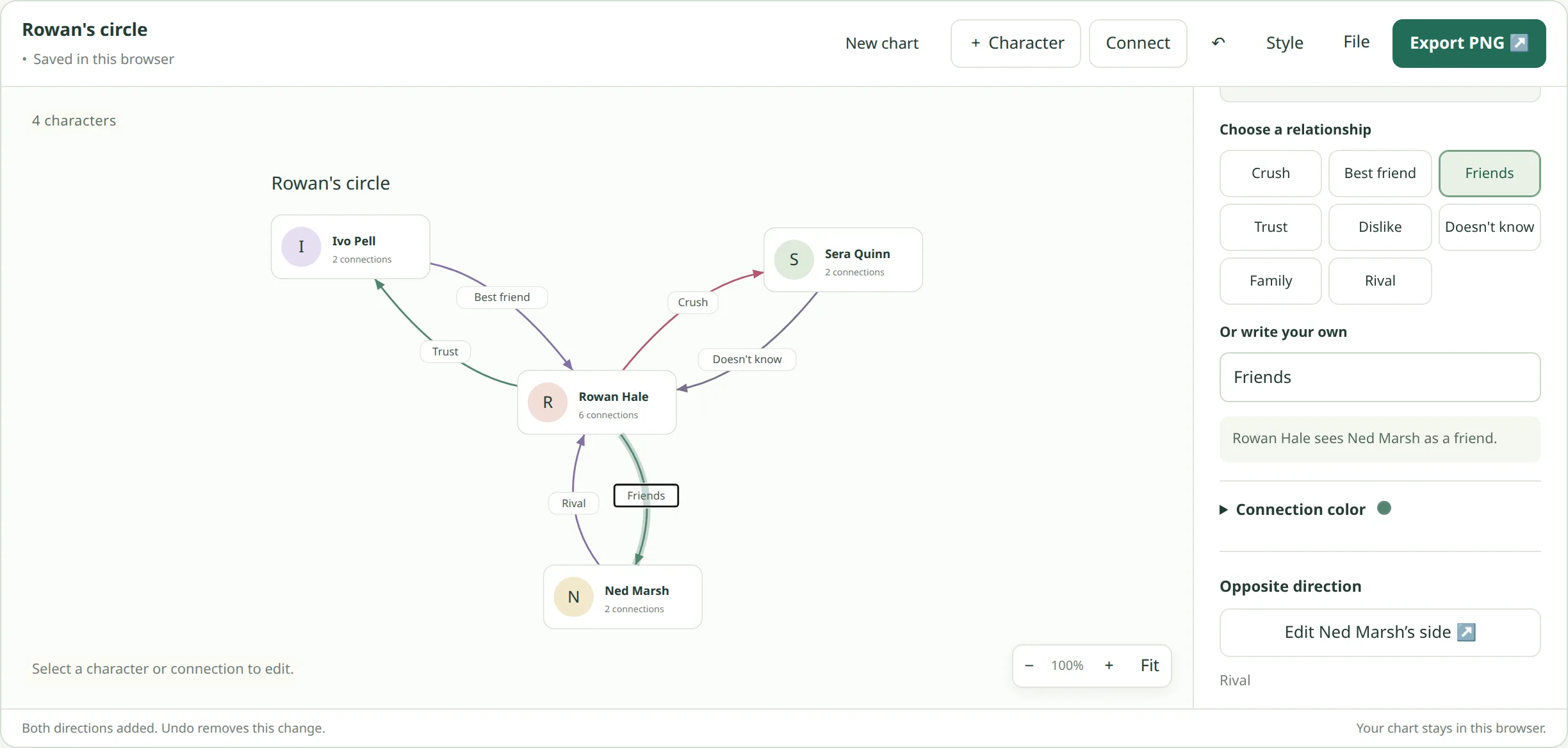
Repeat for the other two pairs. Rowan to Sera is Crush, and Sera to Rowan is Doesn't know. Rowan to Ned is Friends, and Ned to Rowan is Rival. Press Escape or click Cancel to back out of a connection without adding it.
One-way and two-way relationships
One-way: one arrow, one label
A one-way relationship is a single arrow. Before you added Sera's side in the last step, Rowan's crush on Sera was one-way. Leaving the reverse out is a valid choice. It means you have not given that character a view yet.
Two-way: two arrows, two labels
A two-way relationship is two arrows, one in each direction, and each arrow has its own label. RelationCanvas never shares one label between both directions. Rowan to Ned says Friends. Ned to Rowan says Rival. Both are true at the same time, and the chart shows both. A single line with one label would have to pick one and lose the other.
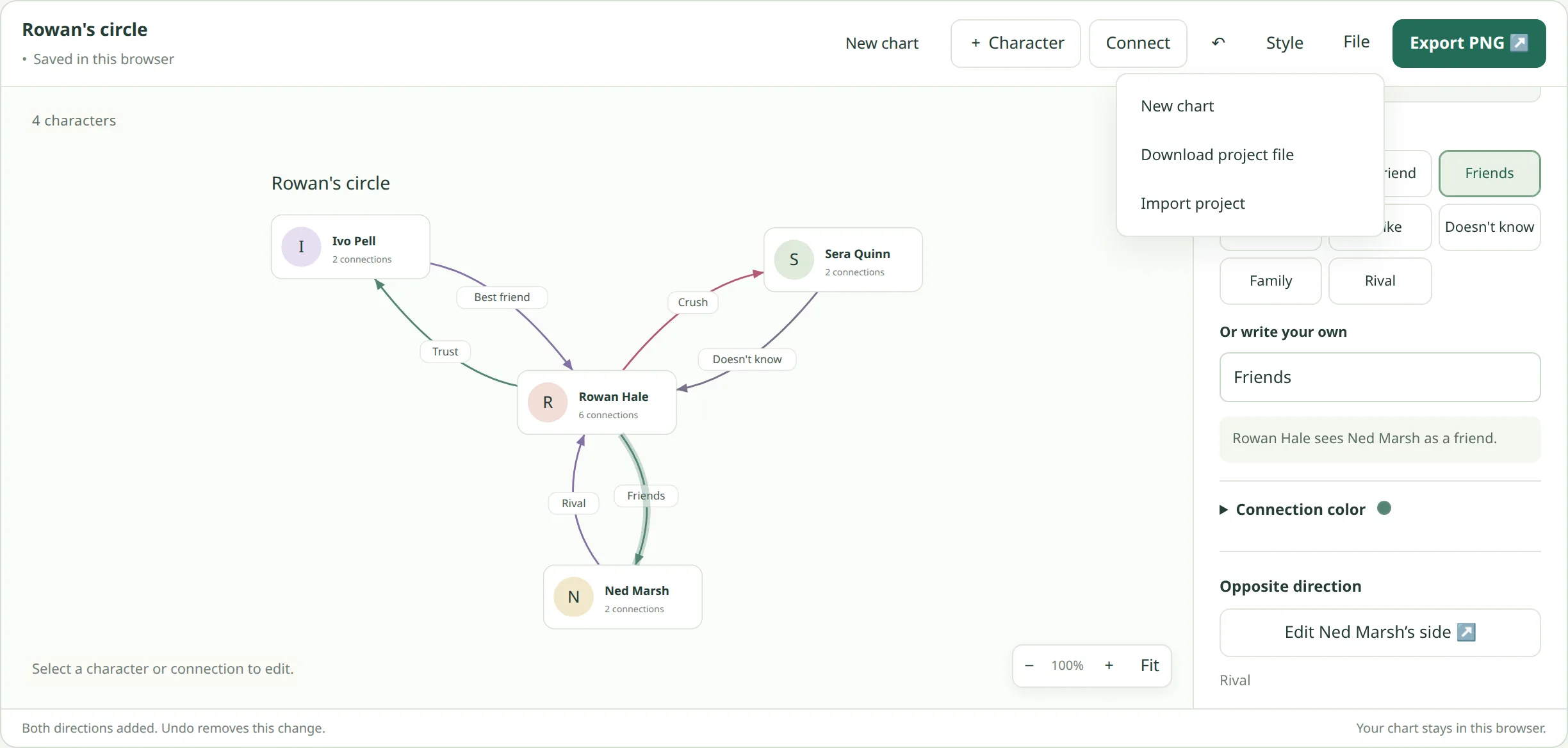
To add or change the other side later, click an arrow. The Selected relationship panel shows the pair, the label, and a button under Opposite direction. It reads Add Ned Marsh's side when there is no reverse arrow yet, and Edit Ned Marsh's side when there is.
When both sides feel the same
If both characters would use the same word, give both arrows the same label. Two Friends arrows are a mutual friendship. They are still two relationships, so a later chapter can change one without touching the other.
Doesn't know is not the same as no arrow
Doesn't know is a label you choose: Sera has not noticed Rowan's feelings. No arrow means you have not decided yet. Keep the two apart, and the chart will show which gaps are on purpose.
Step 4: Arrange and style the chart
Drag cards until no label sits on top of another card. If the editor says Some connections are crowded, move the cards further apart. Use the − and + buttons to zoom, click Fit to see the whole chart, and drag an empty part of the canvas to pan. Zoom and pan only change your view. They do not change the exported image.
Click Style to pick a color theme, add a credit line such as your name or your story's title, and turn on Show relationship legend if you want a key for the label colors. You can also give a single arrow its own color from the relationship panel.
Saving, backing up, and exporting are three different things
RelationCanvas keeps your work in three forms. Each one protects against a different problem.
Saved in this browser
The editor saves your chart in this browser as you work, and the toolbar shows Saved in this browser once the latest change is stored. Nothing is sent to a server and there is no account, so the chart does not follow you to another browser or device. Clearing this site's data in your browser deletes it.
If the browser refuses to save, the editor shows a warning with a Download project file button.
Project file backup
Open File and choose Download project file. You get a file called relationcanvas.json that holds the whole chart: names, pictures, notes, positions, labels, and style. It is the only copy you can open again and keep editing, on this device or another one. To load it, open File and choose Import project. If a chart is already open, the editor asks before replacing it, and a damaged file is rejected without changing your current chart.
PNG export
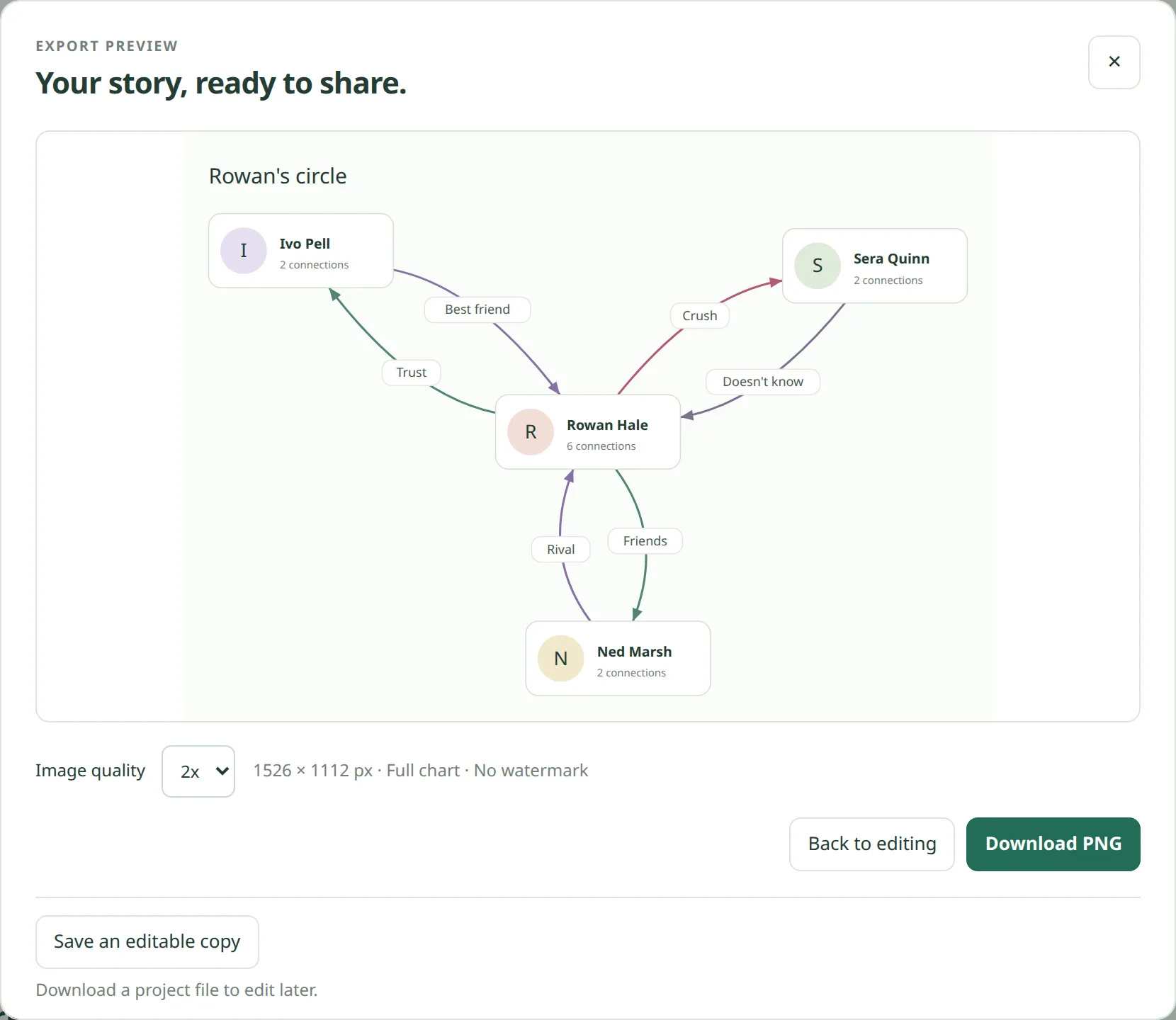
Click Export PNG to open the export preview. Choose 2x or 4x under Image quality, then click Download PNG. The file, relationcanvas.png, is the full chart without a watermark: cards, pictures, arrows, labels, the title, and the credit line. 2x is enough to check the layout. 4x keeps small labels sharp.
A PNG is a picture. You cannot import it back into the editor to change a label, so keep the project file as well. The export preview has a Save an editable copy button for that reason.
The finished example
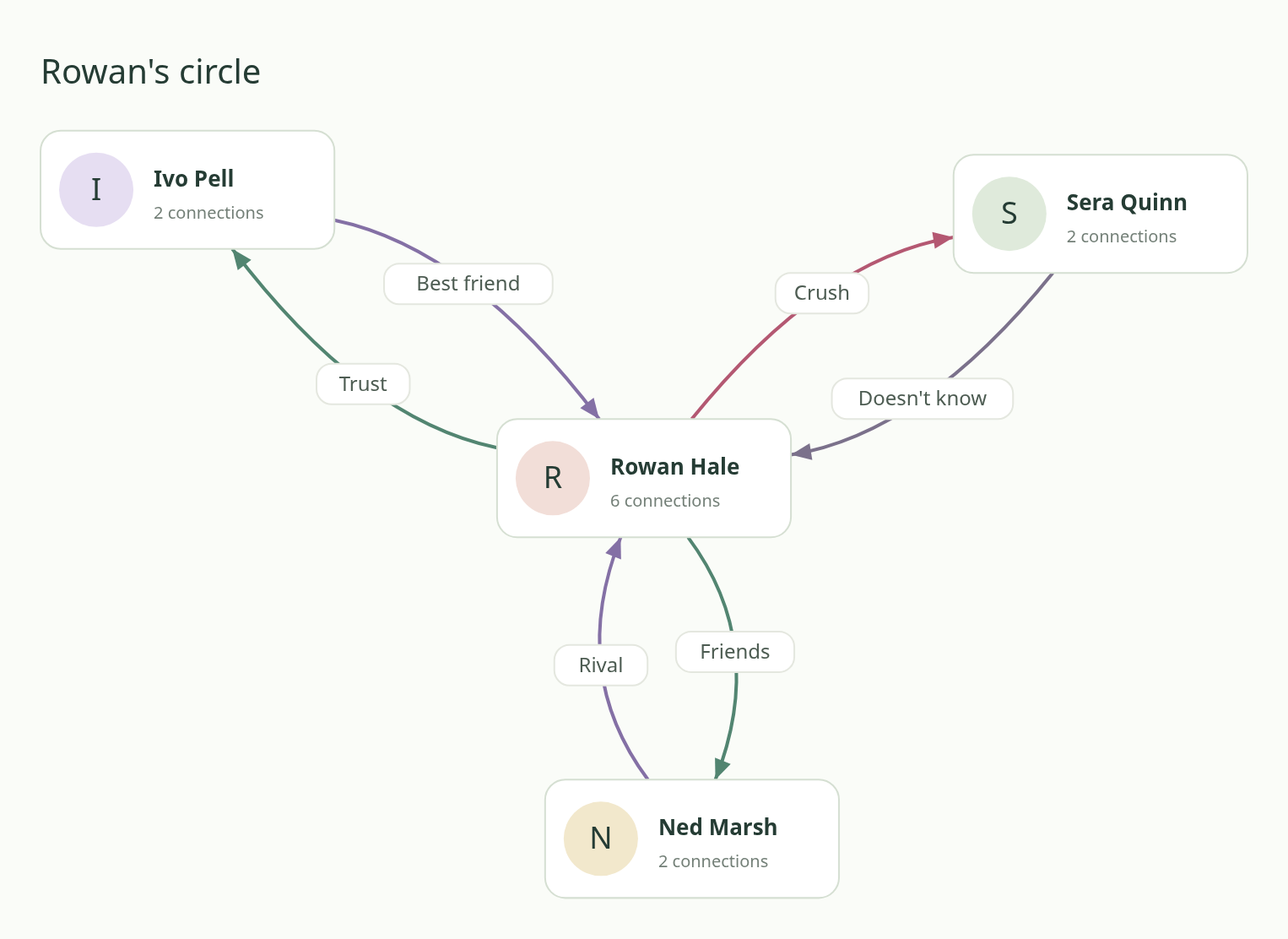
Rowan's circle has four characters and six arrows:
- Rowan to Ivo: Trust. Ivo to Rowan: Best friend.
- Rowan to Sera: Crush. Sera to Rowan: Doesn't know.
- Rowan to Ned: Friends. Ned to Rowan: Rival.
Each pair shows a different kind of answer. Ivo's reply is warm, but it is not the same claim as trust. Sera's is a gap in what she knows. Ned's is a different reading of the same friendship. The OC relationship chart template adds a fifth character, Anouk Vey, and walks through all eight arrows.
Where to go next
If you would rather edit a finished chart than start from blank, open one of the original templates and replace the names:
- Ship chart and love triangle template: three characters and every direction of a romance.
- Story cast and factions template: two groups and the person standing between them.
- OC relationship chart template: one original character at the center of a cast.
You can compare all three on the page with all relationship chart templates, or go back to the relationship chart maker and start your own.